


Policy Master – Book of Business Instructions

-
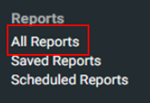
Hover over the Reports icon.

-
Click All Reports.
-
Scroll down to the Book of Business category and click on the card titled Policy Master.
-
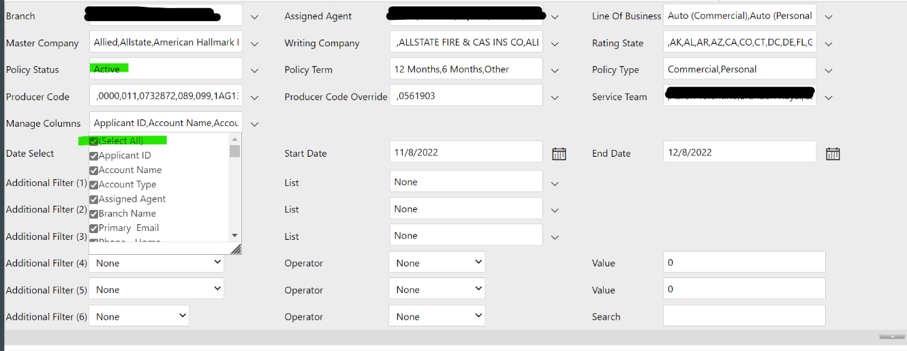
A new tab will open in your browser. In the top portion, make the changes below to the report criteria:
-
All dropdowns should be set to ALL. Make sure the Manage Columns dropdown is checked to Select All.
-
Policy Status dropdown should be set on the default of Active.
-
Date Select is set to No Data Filter. The report automatically shows policies active on the date it is run.
-
Click on the View Report button.
-
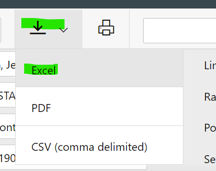
Once data has generated, you can download the report as an excel by clicking on the export dropdown icon.
-
Save the report to your computer. Include your agency name, the reporting month and year, and Book of Business or BoB in the filename.
Suggested format: [Agency Name] [Month Year] BoB.
-
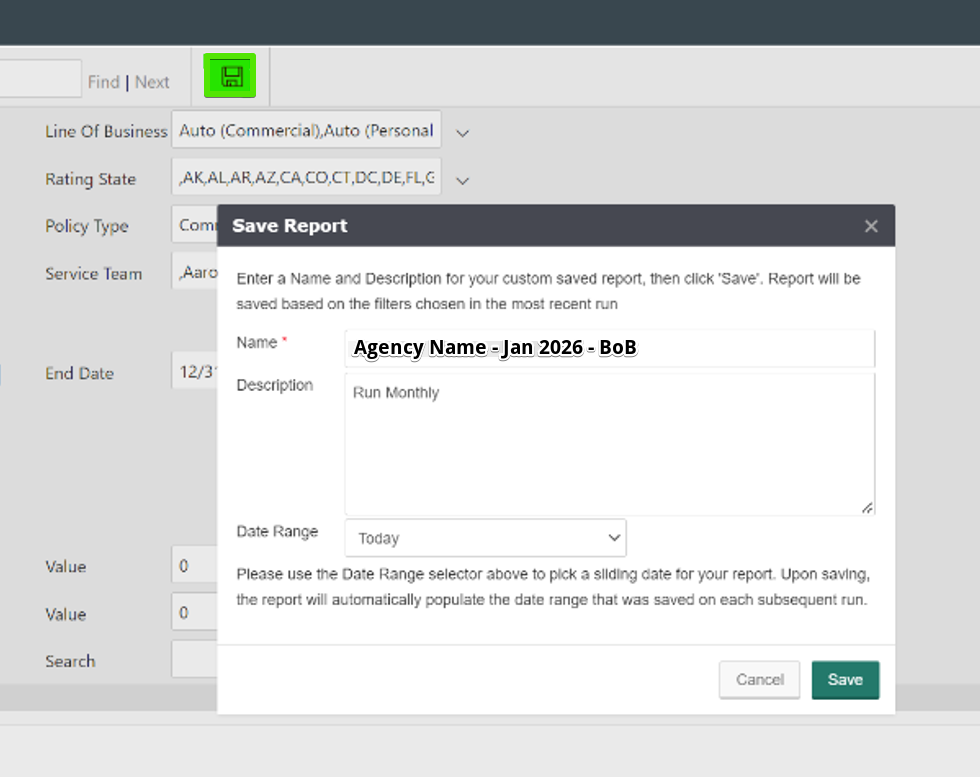
For efficiency, you can choose to save and schedule this same report to run monthly. Click on the save disk icon and complete the criteria below. Click Save.
-
Hover on the reports icon and click on Saved Reports. You should now see this report listed.
-
Click on the three dots icon and click Schedule.
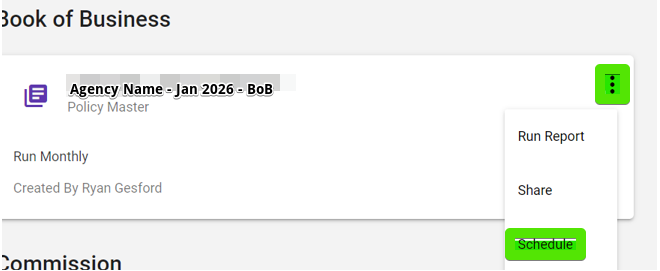
NOTE: Access to the report Schedule feature depends on your EZLynx package level.
-
Set the report schedule to run Monthly, then click Schedule. Email the report each month to [email protected].

