


Legacy Hawksoft Report Instructions

ADVANCED REPORT – Active Book of Business
-
Click on the Reports Menu and select Advanced Reports.
-
Click on New Report
-
Policy Type Filter screen will appear.
-
All Policy Types should be selected
-
Report By: Policy
-
Click Next
-
Report Generator Filters screen will appear.
-
Filter 1: Status*
-
Select All Active
-
Click Next twice
-
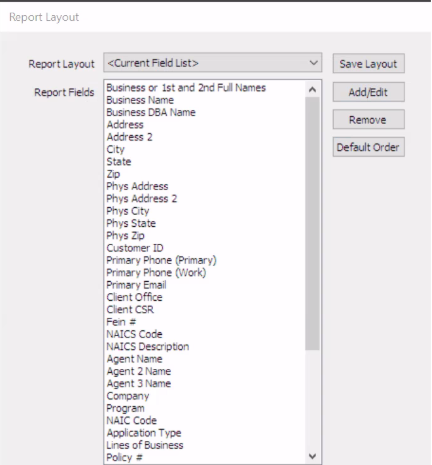
Report Layout Screen will appear.
-
Click on Add/Edit Button
-
Make sure the following fields are selected:
-
Insureds’ Names (1st and 2nd)
-
Business or 1st and 2nd Full Names
-
Business Name
-
Business DBA Name
-
Mailing Address Fields (enabled by default)
-
Physical Address of Client
-
Customer ID
-
Phone Fields
-
Phone-Primary
-
Primary Phone
-
Primary Phone (Work)
-
Email Fields
-
Email - Primary
-
Primary Email
-
Client Office
-
Client CSR
-
FEIN
-
NAICS Code
-
NAICS Description
-
Agent Name
-
Agent 2 Name
-
Agent 3 Name
-
Company (enabled by default)
-
Program
-
NAIC Code
-
Application Type
-
Line of Business
-
Policy # (enabled by default)
-
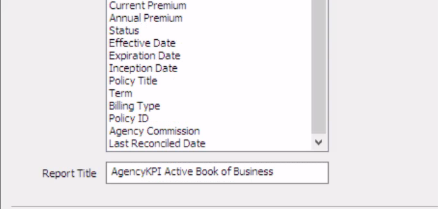
Current Premium (enabled by default)
-
Annual Premium
-
Status
-
Effective Date (enabled by default)
-
Expiration Date
-
Inception Date (enabled by default)
-
Policy Title
-
Term
-
Bill Type
-
Policy ID
-
Commission
-
Agency Commission
-
Last Reconciled Date
-
Click OK
-
Click on the Default Order button.
-
In the Report Title: ProfitLens Active Book of Business
-
Click on Save Layout > Click OK
-
Click Finish
-
File Export > Report
-
Change File type to CSV
-
Change File Name to ProfitLens Month Year
-
Save the Report to your computer.
-
For efficiency, you can choose to save this report as a Memorized Report. This will save the template and filters selected above and allow you to run this report on a recurring basis.
-
Within Hawksoft, click on File
-
Save Memorized Report
-
After you’ve saved your report, the next time you open Advanced Reports your new report will appear in the Memorized Reports
COMMISSION REPORT
**Please verify that all commission statements with an “Agent Paid Date” that fall within the date range selected on this report are reconciled and posted.
-
Click on the Accounting Tab:
-
Commission Report
-
Report
-
Summarize By: Do Not Summarize
-
Filter by Agent Paid Date
-
Choose date range as a 12 Month Move timeframe.
-
File > Export report to CSV and save to your computer.
Your reports are now ready to submit.
Email all reports to [email protected].

