


Hawksoft 6 Report Instructions

Active Clients Report
-
Go to the Reports menu, select Quick Reports.
-
Select New Report button
-
Select the Client option > Active Clients
-
In the Report Title type: ProfitLens Active Clients
-
Run Report
-
Select the Column Options from the upper-right.
-
Click on Add All link in the bottom right.
-
Click Apply and the new columns will automatically appear with the data
-
For efficiency, you can choose to save this report as a Template. This will save the template and filters selected above and allow you to run this report on a recurring basis.
-
From the report window, select the 3-dots menu > Save as Template
-
Template Title: ProfitLens Active Clients > Save Template
-
After you’ve saved your report, the next time you open Quick Reports your new report will appear in the Report Templates
-
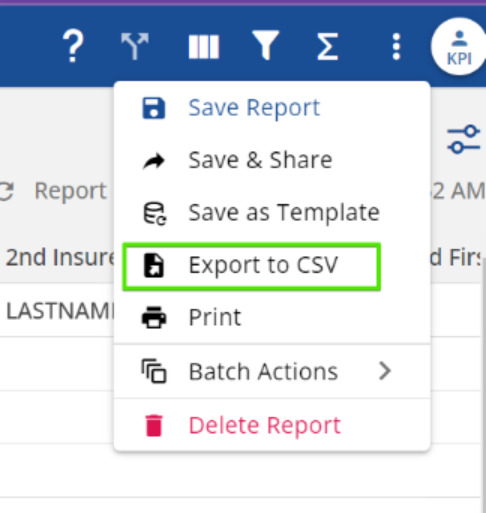
Click the 3-dots menu in the upper-right > Export to CSV

-
Change File Name to ProfitLens Active Clients Current Date > Check the box for “Export for third party" (include client IDs) > Download CSV.
-
The file will be located in the Downloads folder on the PC through File Explorer.
Active Policies Report
-
Go to the Reports menu, select Quick Reports.
-
Select New Report button
-
Select the Policy option > Active Clients
-
In the Report Title type: ProfitLens Active Policies
-
Run Report
-
Select the Column Options from the upper-right.
-
Click on Add All link in the bottom right.
-
Click Apply and the new columns will automatically appear with the data
-
For efficiency, you can choose to save this report as a Template. This will save the template and filters selected above and allow you to run this report on a recurring basis.
-
From the report window, select the 3-dots menu > Save as Template
-
Template Title: ProfitLens Active Policies > Save Template
-
After you’ve saved your report, the next time you open Quick Reports your new report will appear in the Report Templates
-
Click the 3-dots menu in the upper-right > Export to CSV
-
Change File Name to ProfitLens Active Policies Current Date > Check the box for “Export for third party" (include client IDs) > Download CSV.
-
The file will be located in the Downloads folder on the PC through File Explorer.
Commissions Report
-
Go to the Commissions menu, select Commission Processing & Reporting
-
Select Reports icon
-
Select the New Report button
-
Select the Agent icon. If this icon is not available, select Agency.
-
Select the Agent (or Agency) Commission Paid Report by Reporting Date option
-
Edit the Date Range to include the Last 12 Months of Production. Depending on how long your agency has been live on Hawksoft 6 will determine the Start Date.
-
Run Report
-
Select the Column Options from the upper-right.
-
Click on Add All link in the bottom right.
-
Click Apply and the new columns will automatically appear with the data
-
For efficiency, you can choose to save this report as a Template. This will save the template and filters selected above and allow you to run this report on a recurring basis.
-
From the report window, select the 3-dots menu > Save as Template
-
Template Title: ProfitLens Commissions Report > Save Template
-
After you’ve saved your report, the next time you open Commission Reports your new report will appear in the Report Templates
-
Click the 3-dots menu in the upper-right > Export to CSV
-
Change File Name to ProfitLens Commissions Date Range > Check the box for “Export for third party" (include client IDs) > Download CSV.
-
The file will be located in the Downloads folder on the PC through File Explorer.
Your reports are now ready to submit.
Email reports to [email protected].

